SwipeAchieve
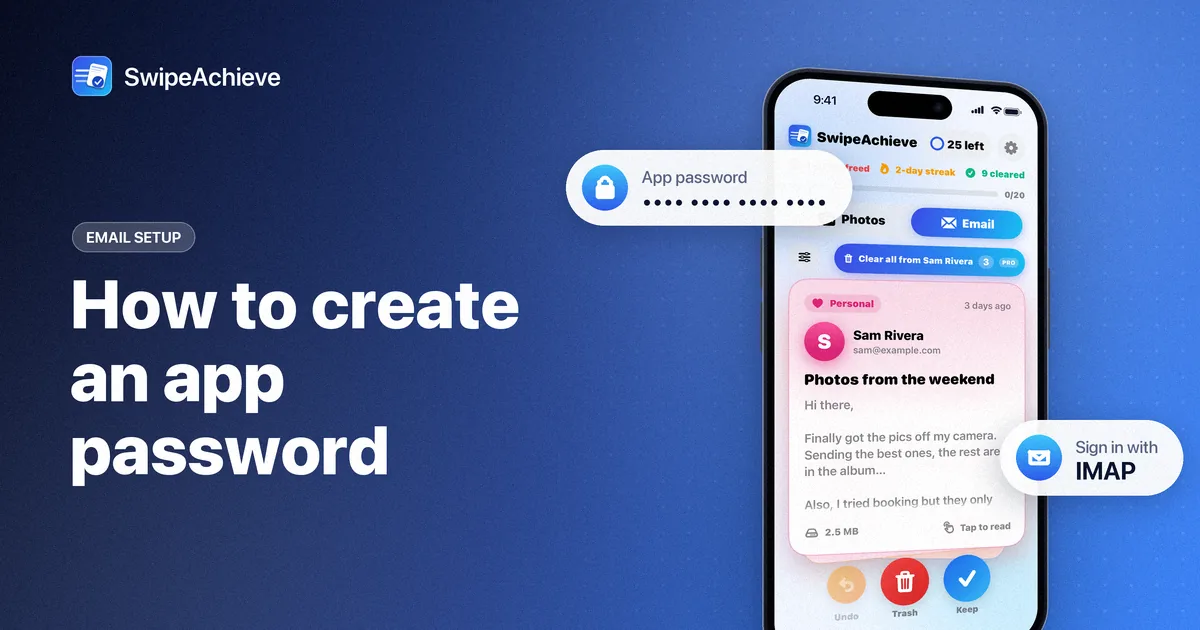
An app password is a separate password that your email provider creates for one app. The app can read your mailbox over IMAP, but it never sees your normal password, and you can revoke it at any time without changing anything else.
SwipeAchieve connects to your mailbox with IMAP and an app password. The password is stored in the iPhone Keychain on your phone and is never sent to us. Here is how to create one with three common providers.
iCloud Mail
Your Apple Account must use two-factor authentication. Apple calls these app-specific passwords.
- Sign in to your Apple Account at account.apple.com.
- In the Sign-In and Security section, choose App-Specific Passwords.
- Choose to generate an app-specific password, name it SwipeAchieve and follow the steps on screen.
- Copy the password.
You can have up to 25 active app-specific passwords. Changing or resetting your Apple Account password revokes all of them, so you would need to create a new one.
Yahoo Mail
- Sign in to the Yahoo Account Security page (login.yahoo.com/account/security).
- Under External connections, choose Create app password.
- Enter SwipeAchieve as the app name and choose Generate password.
- Copy the password, then choose Done.
Yahoo recommends creating it in a browser you have used to sign in to Yahoo for several days, not in a private window. Yahoo app passwords stay active when you change your main password; delete one on the same page to revoke it.
Gmail (with an app password)
Your Google Account needs 2-Step Verification turned on.
- Go to myaccount.google.com/apppasswords and sign in.
- Create an app password and name it SwipeAchieve.
- Copy the 16-character password.
Google does not offer app passwords for work or school accounts, for accounts with Advanced Protection, or when 2-Step Verification is set up only with security keys. Changing your Google password revokes your app passwords.
Add the account in SwipeAchieve
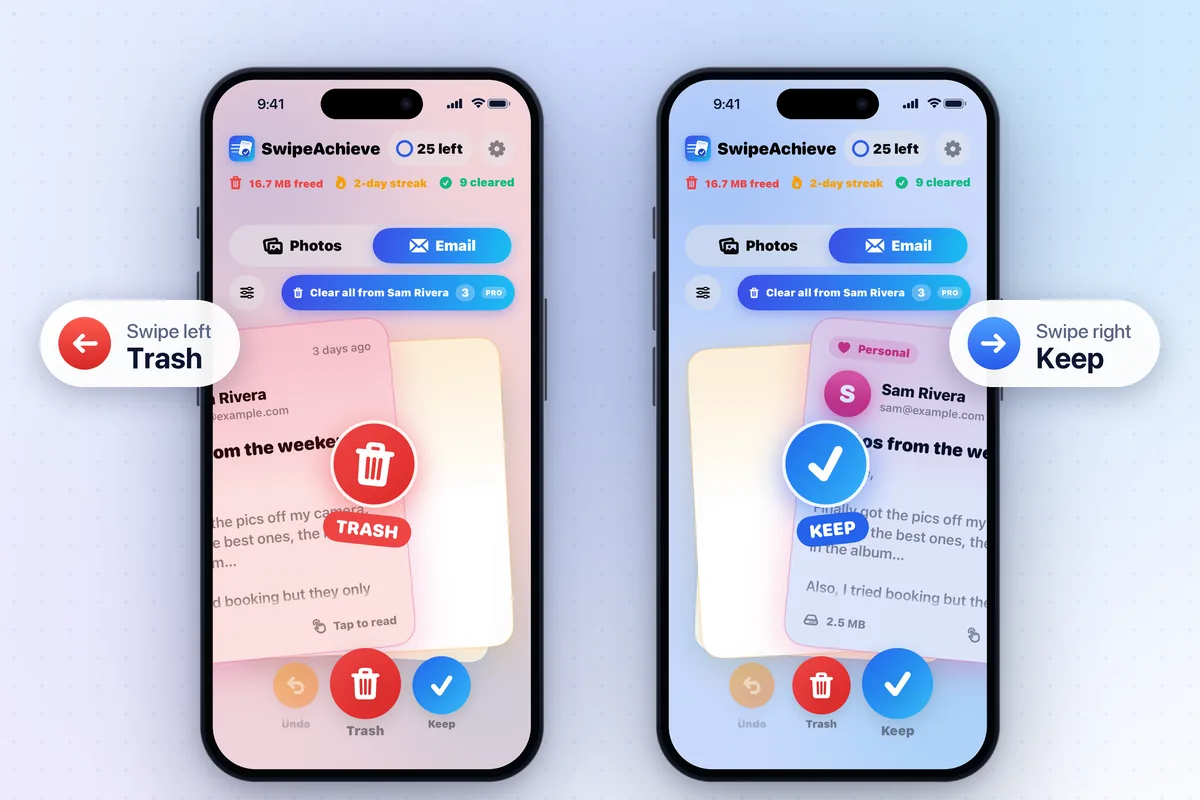
- Open SwipeAchieve and tap Add your email (on the Email tab or in Settings).
- Enter your email address. For iCloud, Yahoo and Gmail addresses the app shows the matching steps and a link to the provider.
- Paste the app password and tap Connect. For iCloud, Yahoo and Gmail, spaces in the password do not matter.
For other providers, enter the IMAP server from your provider's help pages. To disconnect, remove the account in SwipeAchieve Settings, which deletes the saved password from your iPhone, and revoke the app password with your provider.
iCloud is a trademark of Apple Inc. Gmail is a trademark of Google LLC. Yahoo is a trademark of Yahoo. SwipeAchieve is not affiliated with these companies.