SwipeAchieve
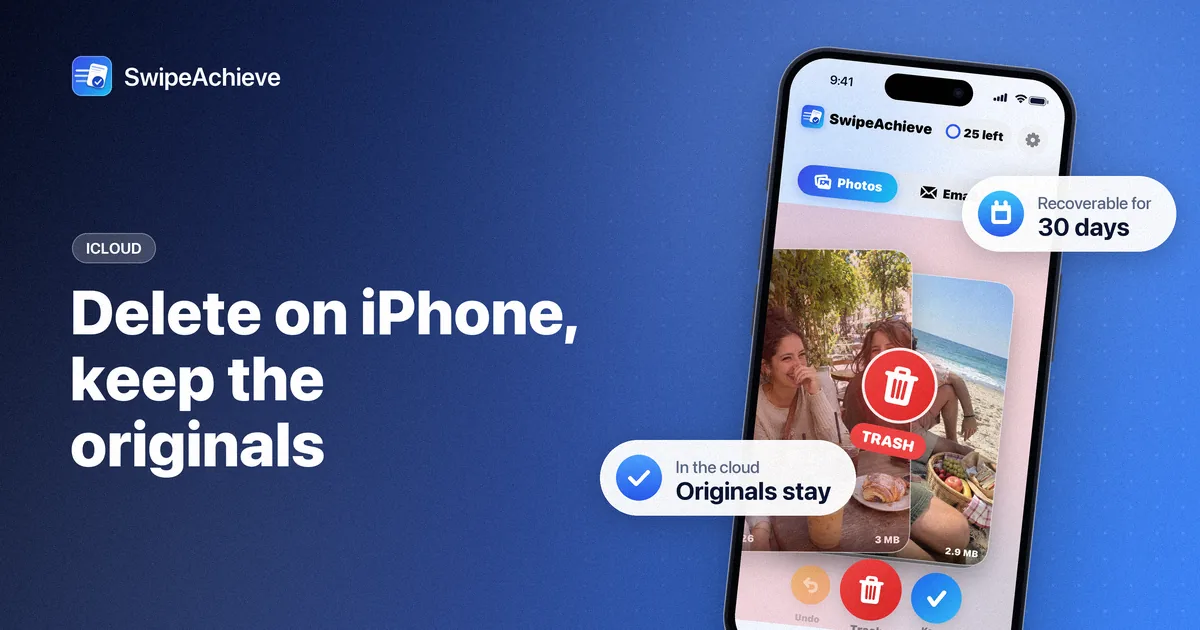
If iCloud Photos is turned on, your iPhone and iCloud are one library. Delete a photo on the phone and it moves to Recently Deleted on every device signed in with your Apple Account, then leaves iCloud after 30 days. So the real question is: how do you make room on the phone without losing the originals? There are three honest answers, and the right one depends on whether you want to keep syncing.
First, check whether iCloud Photos is on
Open Settings, tap your name at the top, then iCloud, then Photos. If Sync this iPhone (called iCloud Photos on older versions of iOS) is on, everything below applies. If it is off, your iPhone library is already separate from iCloud, and deleting on the phone never touches iCloud.
Option 1: Optimize iPhone Storage (keeps everything, frees the most)
This is the one most people actually want. On the same settings screen, choose Optimize iPhone Storage instead of Download and Keep Originals. Your iPhone keeps the full-resolution originals in iCloud and replaces local copies with smaller versions when space gets tight. Nothing is deleted, and any photo opens at full quality when you are online.
- Space is freed gradually, as iOS decides what to shrink. It can take a while and happens mostly while the phone is charging and on Wi-Fi.
- You still need enough iCloud storage for the whole library. The free 5 GB fills fast; check Settings > your name > iCloud to see your plan and what is using it.
- Deleting a photo still deletes it everywhere. Optimize changes where the originals live, not what deleting means.
Option 2: Turn off iCloud Photos on this iPhone, then delete locally
If you want a photo gone from the phone but kept in iCloud, the phone has to stop syncing first. Go to Settings > your name > iCloud > Photos and turn off Sync this iPhone. iOS asks whether to download a copy of the iCloud photos to the phone or remove them from the phone. After that, whatever you delete on the iPhone stays in iCloud, and you can check at any time on the iCloud website.
- The catch: new photos you take stop uploading to iCloud, and the phone no longer receives photos from your other devices, until you turn sync back on.
- If you turn sync on again later, the iPhone library merges with iCloud again. Photos you deleted locally come back from iCloud, and photos you kept locally upload again. It is safe, but it undoes the cleanup on the phone.
- So this option suits people who are leaving iCloud Photos, or who want a one-off split between the phone and the cloud.
Option 3: Copy the originals somewhere else, then delete on the phone
If the goal is simply not to lose anything, make a second copy outside the synced library, then delete freely. Good places: a Mac or PC (the Photos app import, or Image Capture on a Mac), an external drive, or another cloud service's app. Once you have confirmed the copies open, delete on the iPhone. The photos leave iCloud too after 30 days, but you have them elsewhere.
This is also the only option that lowers your iCloud bill, because the first two keep every byte in iCloud.
What deleting looks like, whichever option you pick
Deleted photos and videos go to Recently Deleted and stay there for 30 days. The space on the phone, and in iCloud if synced, comes back when they leave that album. Our guide to clearing Recently Deleted on iPhone covers emptying it early.
Where SwipeAchieve fits
SwipeAchieve is a swipe-to-delete photo cleaner for iPhone. It works on the same library as the Photos app, so the iCloud rules above apply exactly: with sync on, a photo you swipe away and confirm is deleted everywhere; with sync off, it is deleted on the phone only.
- Swipe left to queue a photo for deletion, right to keep it. Review the queue and tap Undo for anything you change your mind about.
- Nothing is deleted until you tap Delete and confirm in the iPhone system prompt.
- Sort Biggest first to find the videos that free the most space.
- Your photos never leave your phone. The app does not upload them anywhere.
For the video step, see how to find and delete large videos on iPhone.
FAQ
If I delete a photo on my iPhone, is it deleted from iCloud?
Yes, if iCloud Photos (Sync this iPhone) is on. It moves to Recently Deleted on all your devices and is removed from iCloud after 30 days, unless you recover it first.
Can I delete photos from my iPhone only and keep them in iCloud?
Only by turning off iCloud Photos on that iPhone first (Option 2), or by keeping a copy somewhere else (Option 3). With sync on, there is no per-photo way to delete locally and keep in iCloud.
Does Optimize iPhone Storage delete my photos?
No. It keeps the originals in iCloud and stores smaller versions on the phone. Nothing is removed from your library.
Will turning off iCloud Photos delete my photos?
No. iOS asks whether to keep a downloaded copy on the phone or remove the iCloud copies from the phone. iCloud itself keeps everything either way.