SwipeAchieve
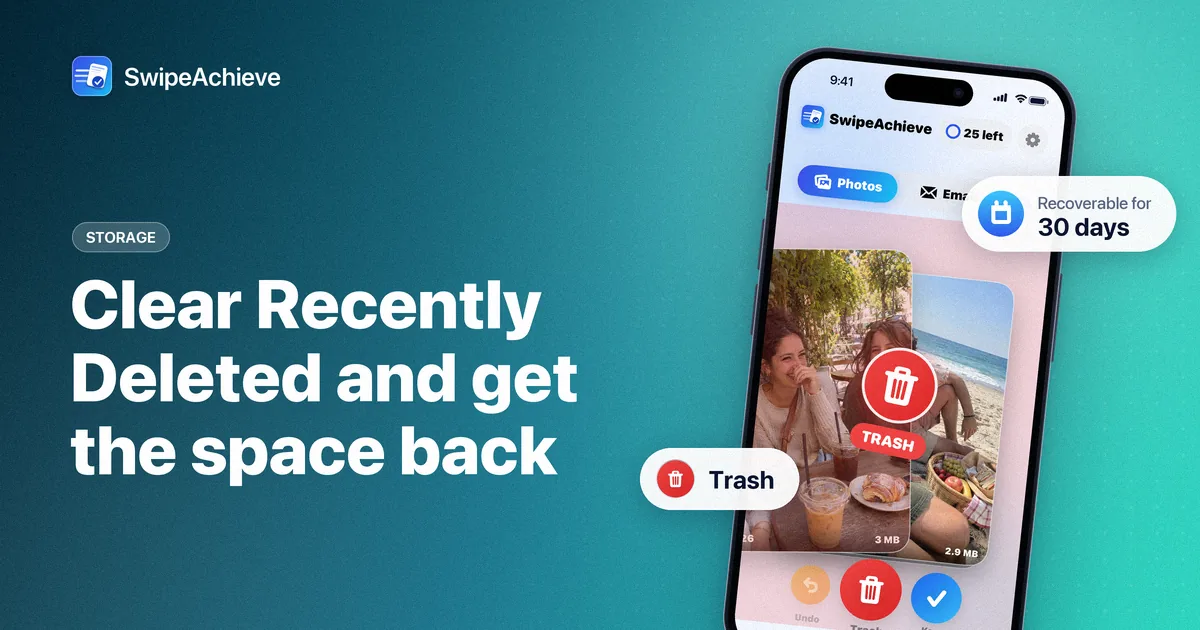
You deleted a pile of photos and videos, but your iPhone storage barely moved. That is expected: on iPhone, deleted photos and videos first go to the Recently Deleted album, where they stay for 30 days so you can change your mind. Until they leave that album, they still take up space.
How to empty Recently Deleted
These are Apple's steps for current versions of iOS:
- Open the Photos app, scroll down to Utilities and tap Recently Deleted. On iOS 26, Utilities is in the Collections tab.
- Tap View Album, then unlock the album with Face ID or Touch ID.
- Tap Select, then tap the More button (three dots).
- Tap Delete All, then confirm (for example, Delete from All Devices).
On iOS 17, open the Albums tab first: Recently Deleted is under Utilities there.
This cannot be undone: once you delete items from Recently Deleted, you cannot get them back. To remove only some items, select them first and choose Delete instead of Delete All.
Things to know before you empty it
- If you use iCloud Photos, deleting a photo on one device deletes it on your other devices signed in with the same Apple Account.
- In an iCloud Shared Library, only the person who added an item can permanently delete or recover it.
- To get something back instead, open Recently Deleted, select it, tap the More button and choose Recover.
Or simply wait
If you are not short of space today, you do not need to do anything. iOS removes items from Recently Deleted for good after 30 days, and you keep a safety net in the meantime.
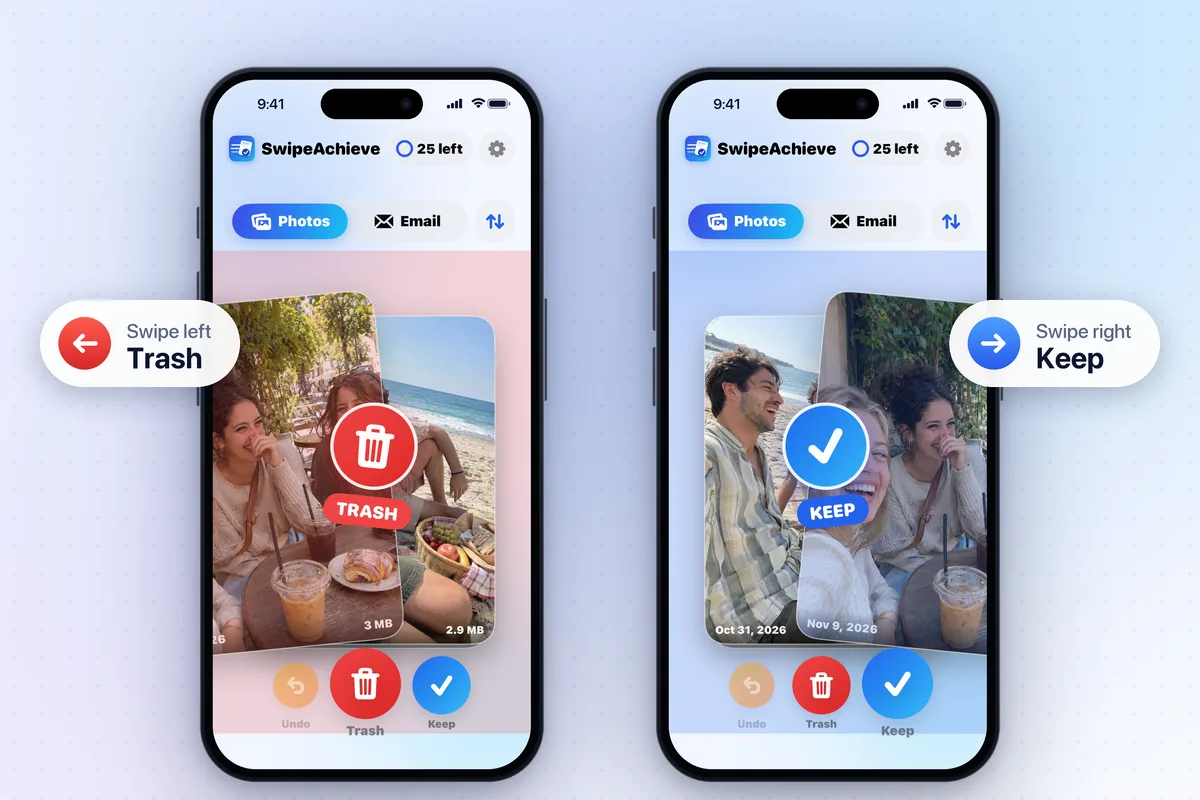
Where SwipeAchieve fits
SwipeAchieve helps with the first step: deciding what to delete. Swipe left on the photos and videos you do not need, tap Delete, and confirm once in the iPhone system prompt. Those items then go to Recently Deleted like any other deleted photo, so the steps above work the same way. Your photos never leave your phone.