SwipeAchieve
A camera roll with 20,000 items is not a storage problem, it is a decision problem. Nobody wants to judge 20,000 photos one by one. The trick is to clear the easy, heavy categories first, so the one-by-one part is short, and then set a couple of rules so it stays clean. Here is the order that works on iPhone.
Step 1: Videos first (10 minutes, most of the space)
Videos weigh far more than photos: a minute of 4K video is around 170 MB, while a photo is a few MB. In the Photos app, scroll to Media Types and open Videos (on iOS 17 and earlier it is under the Albums tab). The Photos app does not sort by size, so look for long clips: screen recordings, concerts, school plays, the four-minute video you took by accident. Delete the ones you never rewatch.
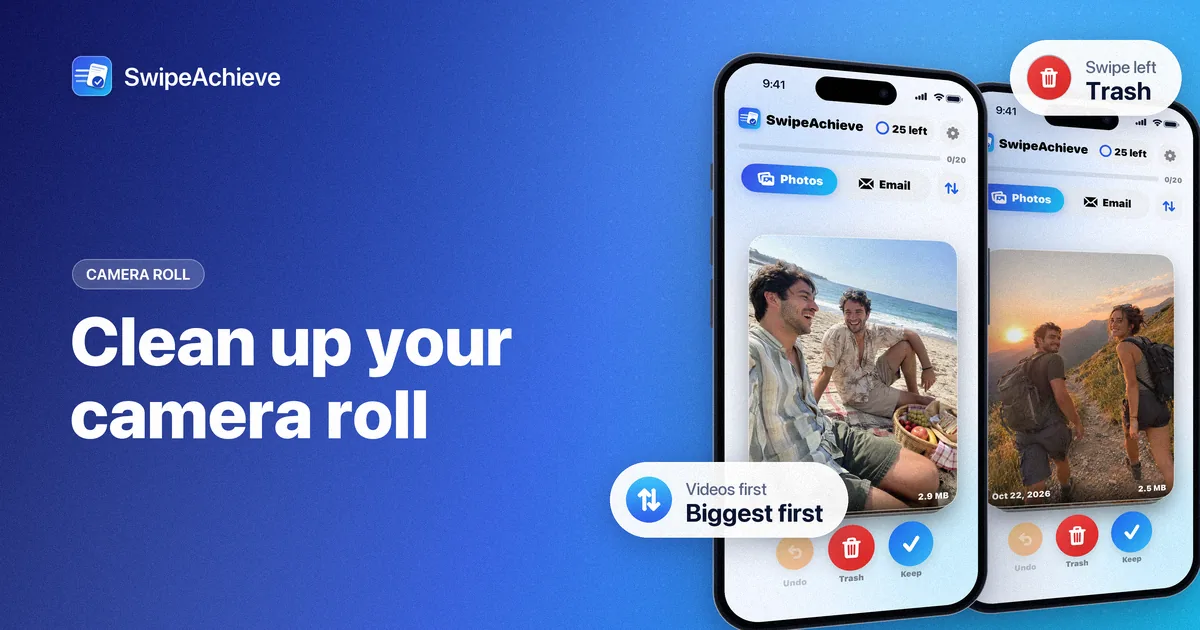
If you want size-sorted, SwipeAchieve's Photos tab has a Biggest first sort and a Videos filter, with the length and size on every card. Our guide on finding and deleting large videos on iPhone goes through it.
Step 2: Screenshots and screen recordings
Media Types > Screenshots. Most screenshots are receipts, directions and chats that mattered for a day. Select, delete. Keep anything with a code or a document in it, or save it to Notes first. Screen recordings have their own entry under Media Types. Full guide: how to delete screenshots on iPhone fast.
Step 3: Duplicates and bursts
On iOS 16 and later, the Photos app finds exact and near duplicates for you: open Utilities > Duplicates, then tap Merge to keep the best version and send the rest to Recently Deleted. Bursts are the other hidden pile: open a burst, tap Select, keep one or two frames, and the rest go.
Step 4: Swipe through what is left
Now the heavy, mechanical categories are gone, and what remains is real photos. This is where one-at-a-time works, because each one needs a glance, not a rule. Pick a block (last month, one trip, one year) and go through it: keep or delete, one gesture each. Do it in short sessions; decisions get sloppy after 15 minutes.
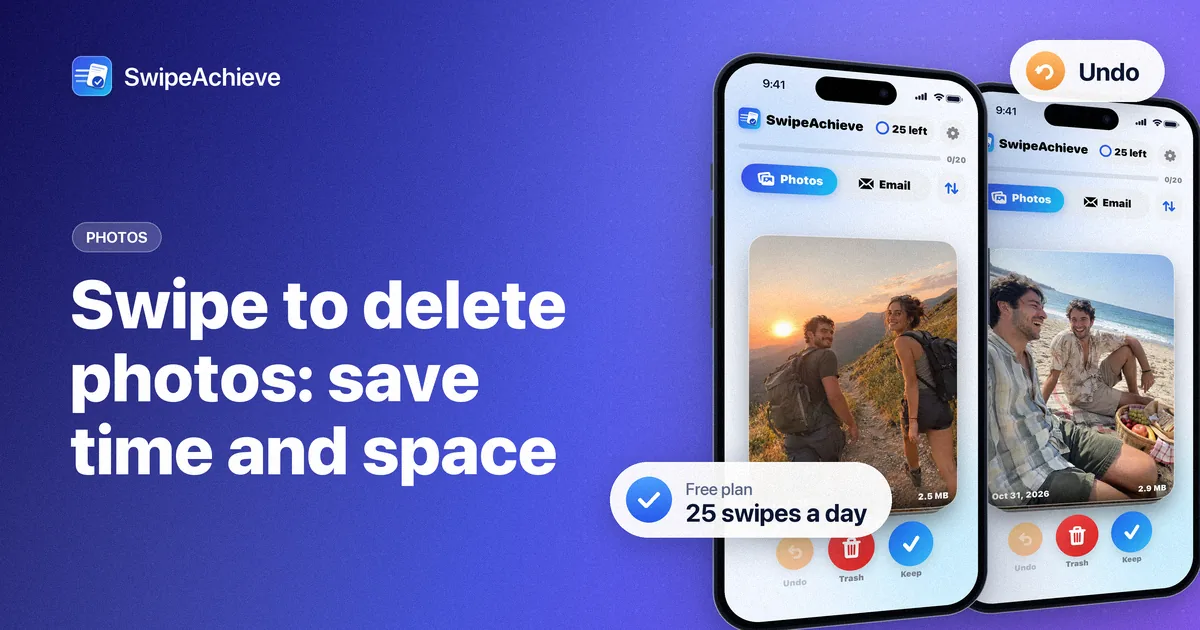
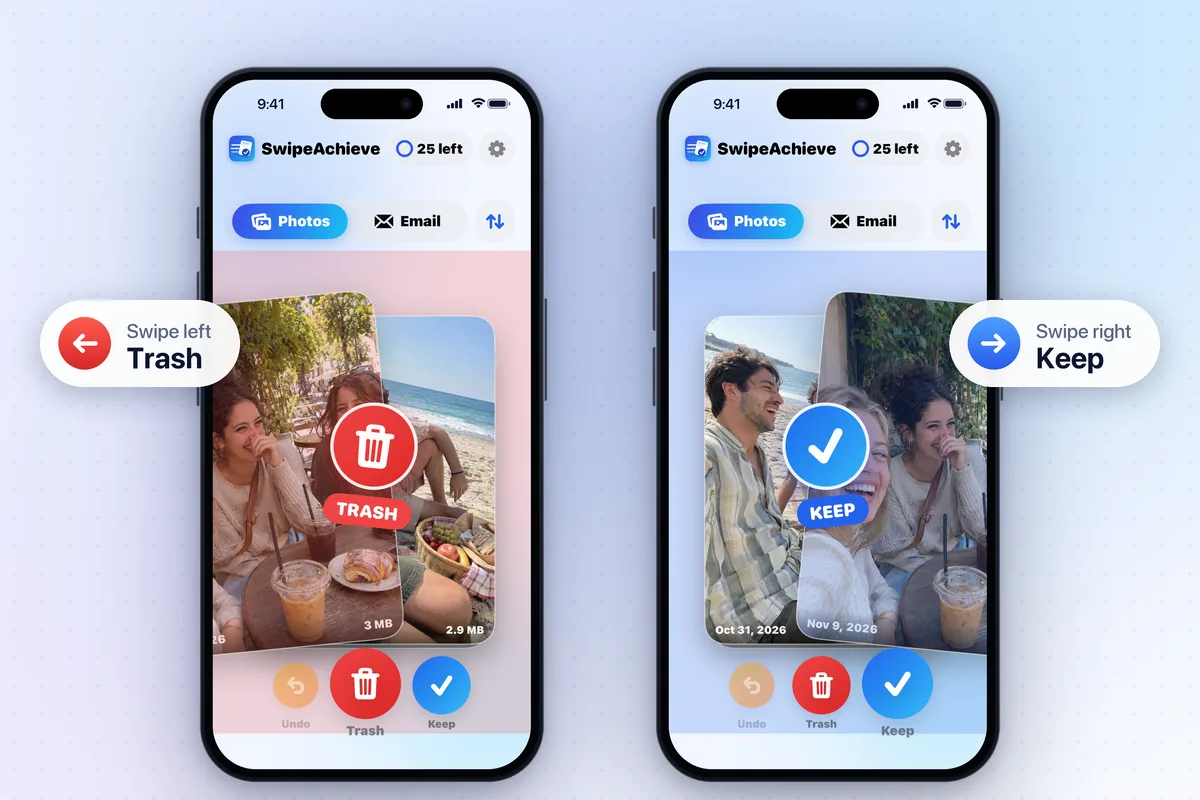
This is exactly what SwipeAchieve is for. Each photo is a full-screen card with its date and size: swipe left to queue it for deletion, right to keep it. Undo brings back a swipe, the queue can be reviewed, and nothing is deleted until you tap Delete and confirm in the iPhone prompt. The free plan gives you 25 swipes a day; Pro removes the limit for a big sweep.
Step 5: Empty Recently Deleted (or let it empty itself)
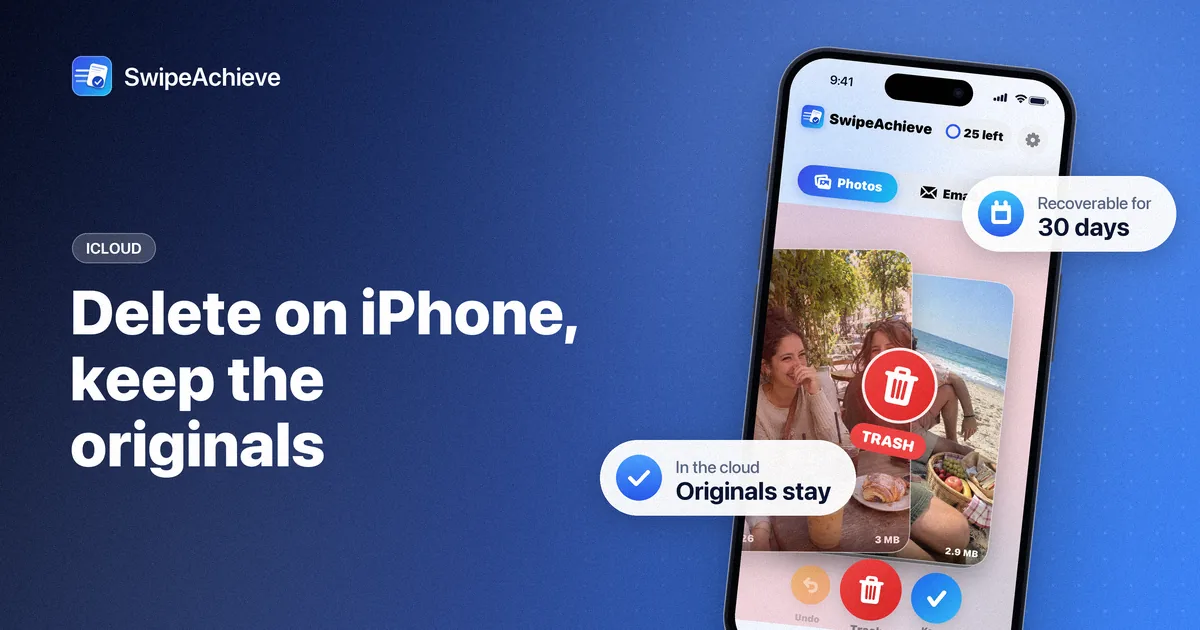
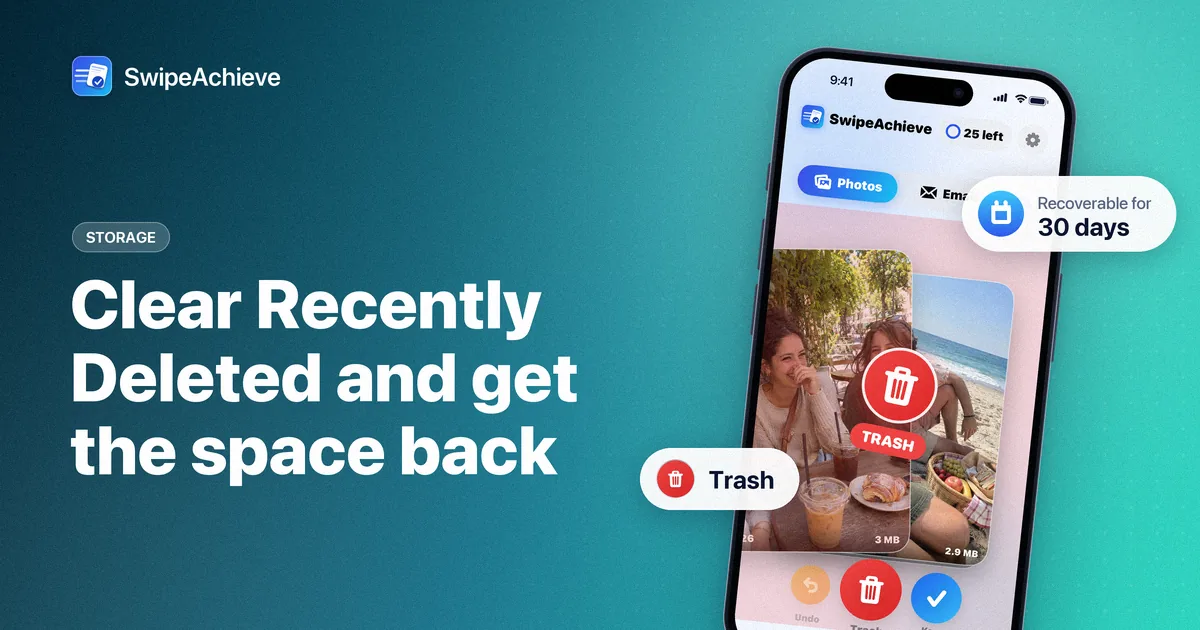
Everything you deleted sits in Recently Deleted for 30 days, still using space. If you want the storage now, open Utilities > Recently Deleted, unlock it with Face ID, tap Select, then Delete All. If you are nervous, wait the 30 days; it clears on its own. Details: how to clear Recently Deleted on iPhone.
Three rules that keep it clean
- Delete at the end of the day. Ten seconds after a walk beats an hour a year from now.
- Shoot less by default: turn off Live Photos if you never use them (the rings icon in the Camera app), and record 1080p unless you need 4K (Settings > Camera > Record Video).
- Favorite instead of hoarding. Tap the heart on the few you love; a Favorites album you actually open is worth more than 10,000 maybes.
A note on iCloud
If iCloud Photos is on, deleting on the iPhone also deletes from iCloud and your other devices once the 30 days pass. If you want to free space on the phone but keep everything in iCloud, read how to delete photos from iPhone but keep them in iCloud first.
FAQ
How do I delete all photos from my iPhone at once?
In the Photos app, open your library, tap Select, then drag your finger across the grid to pick many at once and tap the trash icon. Repeat in a few passes. They go to Recently Deleted; empty that album to free the space. If iCloud Photos is on, this deletes from iCloud too, so make a copy first if you want to keep anything.
Is there a fast way to find duplicate photos?
Yes, it is built in: Utilities > Duplicates in the Photos app on iOS 16 and later. It groups exact and near duplicates and merges each group with one tap.
How long does it take to clean a camera roll?
Steps 1 to 3 usually take under half an hour and free most of the space. Step 4 depends on how many real photos you have: at a decision every one to two seconds, a thousand photos is about 20 to 30 minutes of swiping. The maths is in our swipe-to-delete time and storage post.
Does cleaning the camera roll affect my iCloud backup?
iCloud Backup includes your photos only when iCloud Photos is off. Either way, a smaller library means a smaller backup and a faster restore.