SwipeAchieve
Most of us take screenshots for a moment: a boarding pass, a recipe, a map, a funny message. Then they stay forever, mixed in with the photos we actually care about. Each one is small, so screenshots are rarely what fills your iPhone, but hundreds of them make your camera roll harder to browse and back up. Here is how to clear them quickly.
How much space do screenshots really use?
Less than you might think, one by one. A screenshot is usually a fraction of the size of a camera photo, depending on your screen and what was on it. You can check any screenshot by opening it and swiping up or tapping the info button. The space adds up only across hundreds or thousands; the bigger win is a camera roll you can actually find things in. If space is the goal, start with large videos instead.
Find all your screenshots in Photos
- Open the Photos app.
- Scroll down to Media Types. On iOS 17, open the Albums tab first; on iOS 26, open the Collections tab.
- Tap Screenshots. Your iPhone collects every screenshot here automatically.
Delete many at once
If most of them can go, batch deleting in the Screenshots album is the fastest way:
- In the Screenshots album, tap Select.
- Tap the screenshots to delete, or drag your finger across several thumbnails to select a run of them.
- Tap the trash button and confirm.
Be careful with Select All style shortcuts here: screenshots often hold things you meant to keep, like tickets, receipts, codes and addresses. A quick look first is worth it.
Stop new screenshots from piling up
After you take a screenshot, a small preview appears in the corner. Tap it, tap Done, and your iPhone offers to delete the screenshot instead of saving it (the exact options vary a little between iOS versions). If you only needed it to share or mark up once, deleting it right there means it never reaches your library.
Swipe through the ones you are not sure about
Batch deleting works when you can decide from a thumbnail. For the rest, seeing each screenshot full size and deciding with one gesture is quicker than opening them one by one.
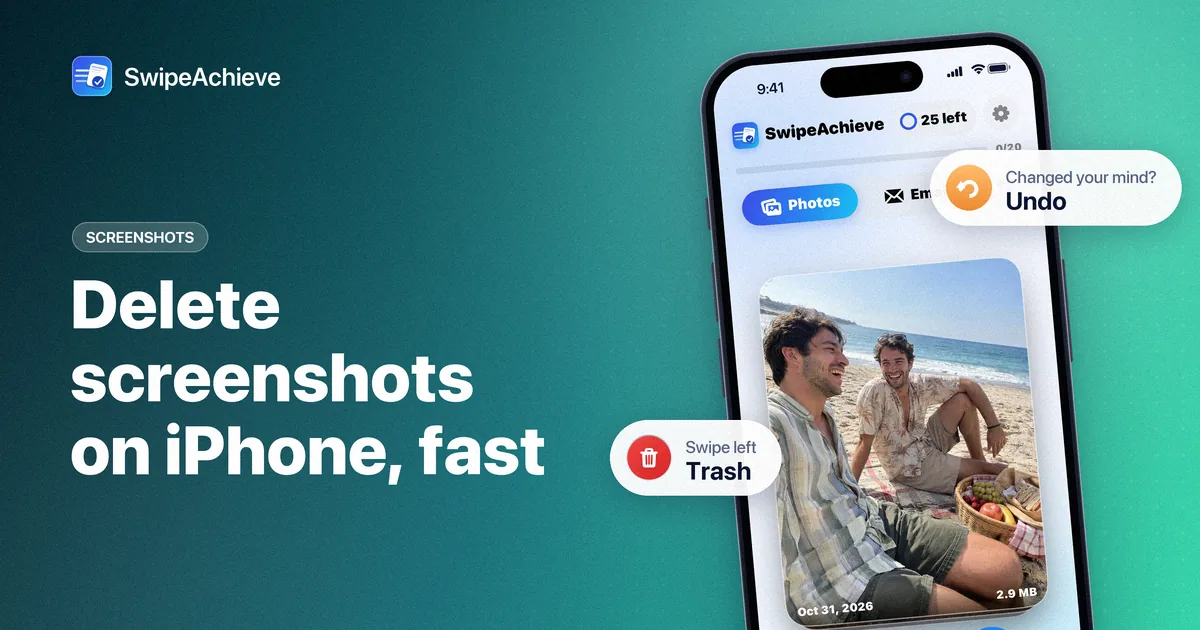
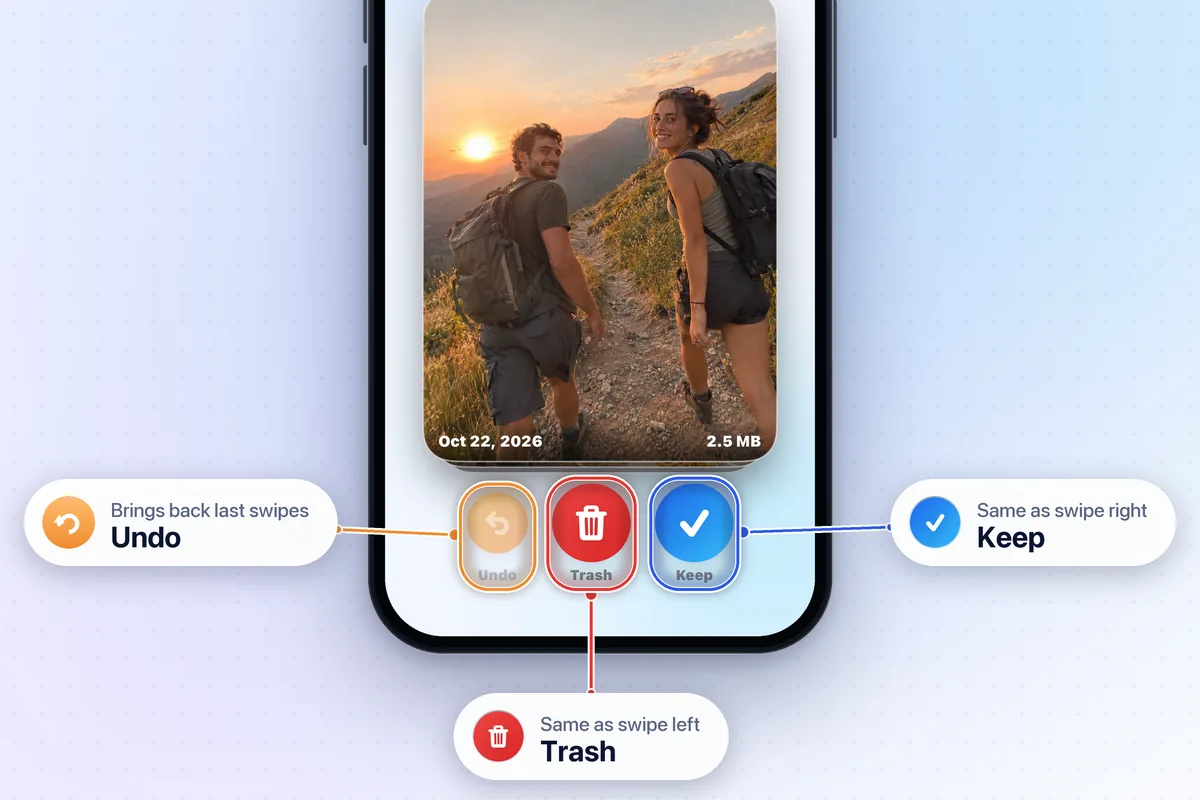
SwipeAchieve treats screenshots like any other photo: they appear as full-screen cards in the Photos tab, with the date and size on each card. It does not detect screenshots on its own, so here is the practical way to reach them:
- In the Photos tab, tap the sort and filter button (two arrows) next to the tabs. If you do not see it yet, make a few swipes first.
- Choose Newest first and set the filter to Photos, so videos stay out of the way. Recent screenshots are usually what you are trying to clear.
- Swipe left on screenshots you no longer need and right on everything you want to keep.
- Tap the queued count to review the list, then tap Delete and confirm once in the iPhone prompt.
Photos you keep do not come back in later sessions, so each session continues where the last one stopped.
What to keep, what to delete
Screenshots are easy to delete in a hurry, which is exactly when the useful ones disappear. A quick rule of thumb:
- Delete: memes you already shared, chats you already answered, maps for trips you finished, outfits and products you did not buy, and anything you screenshotted to show someone once.
- Keep or move: tickets and booking confirmations for future dates, receipts you may need for returns or taxes, recovery codes and anything with an address or reference number you still use.
- When in doubt, swipe right. You can always come back to it next week.
A two-minute habit
- Once a week, open the Screenshots album and clear what you already used.
- Delete one-time screenshots right after taking them from the preview.
- Save the screenshots you truly need (tickets, documents) to Files or Notes, where they are easier to find than in the camera roll.
The free plan in SwipeAchieve includes 25 swipes a day, enough for a quick weekly screenshot pass. Pro removes the daily limit if you have a big backlog; the plans are on our pricing page.
Where deleted screenshots go
Like any deleted photo, screenshots move to Recently Deleted and stay there for 30 days. That is your safety net if you deleted a ticket by mistake. If you need the space right away, you can empty the album yourself: see how to clear Recently Deleted on iPhone.
If you use iCloud Photos, remember that deleting a screenshot on your iPhone also removes it from your other devices signed in with the same Apple Account.
FAQ
Where are screenshots on iPhone?
In the Photos app, under Media Types > Screenshots. They also appear in your main library with all your other photos.
Can I delete all screenshots at once?
Yes. In the Screenshots album, tap Select, select the screenshots (dragging across thumbnails selects several at a time) and tap the trash button. They go to Recently Deleted for 30 days.
Will deleting screenshots free a lot of space?
Usually not much on its own, because each screenshot is small. It makes your library much tidier. For space, large videos matter far more.
Does SwipeAchieve find screenshots automatically?
No. It shows screenshots along with your other photos. Sorting by newest first with the Photos filter is the quickest way to reach recent ones. Nothing leaves your iPhone.