SwipeAchieve
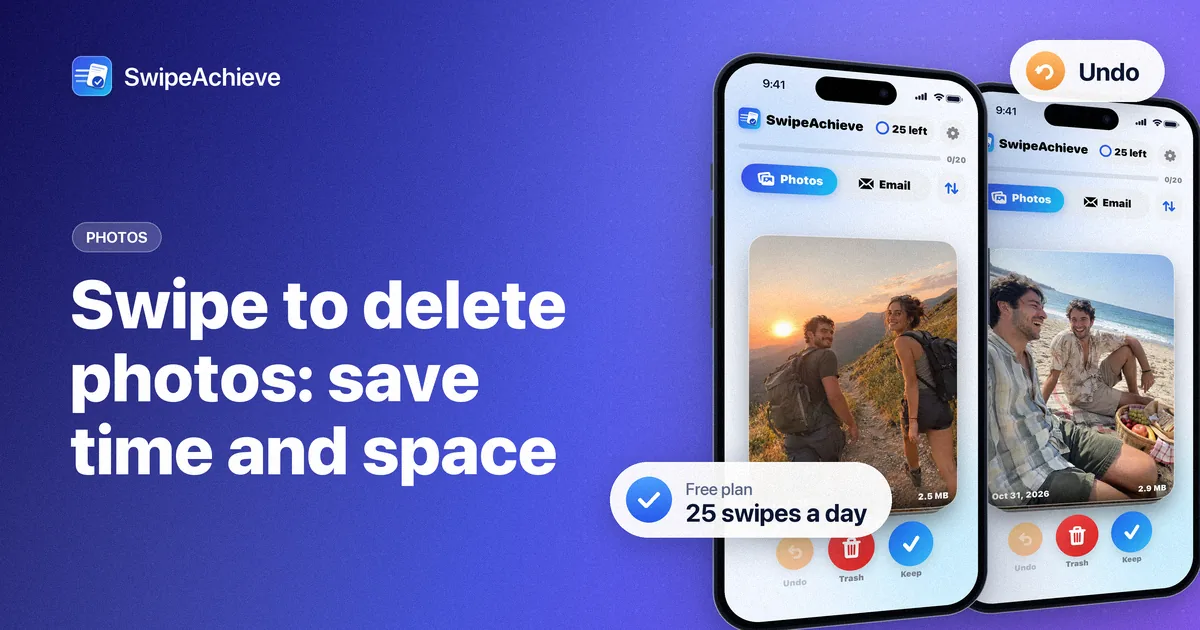
A swipe-to-delete photos app shows your camera roll one item at a time. Swipe left to delete, swipe right to keep. The idea is simple, but the useful question is practical: how much time does it take, and how much space do you actually get back? This post works through both with clear assumptions, so you can plug in your own numbers instead of trusting a headline.
The short answer
- Time: at one decision every 1 to 2 seconds, 500 photos take roughly 8 to 17 minutes of pure swiping. Real sessions are slower when you stop to look at a memory, and that is fine.
- Space: it depends far more on videos than on photos. A few long 4K videos can weigh more than hundreds of photos.
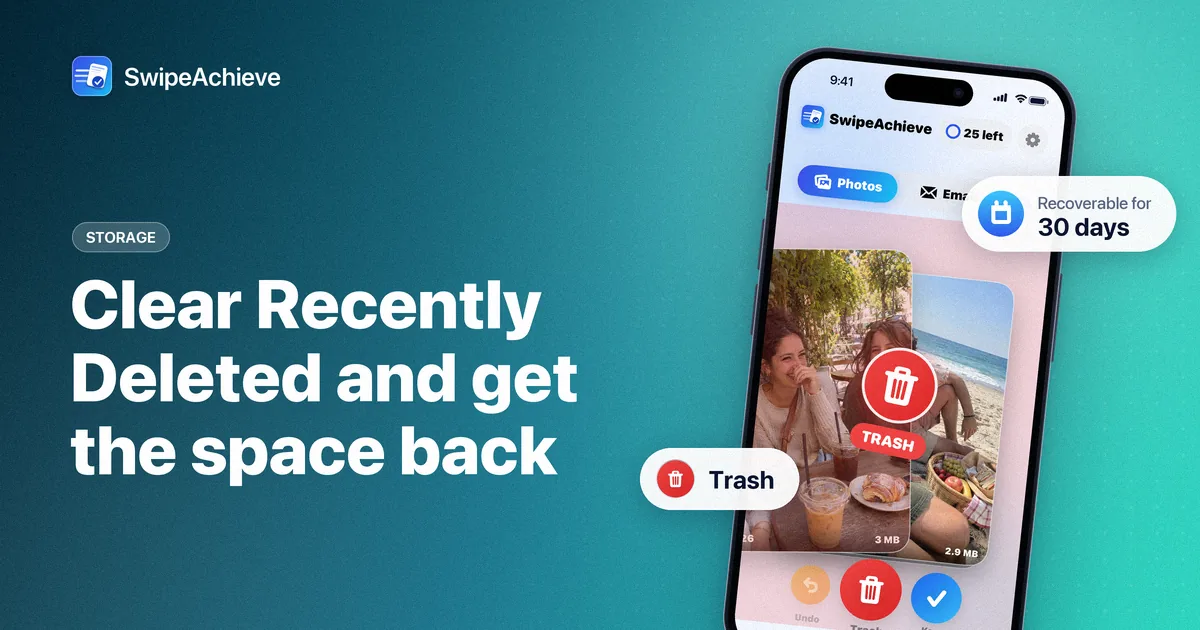
- Timing: on iPhone, the space comes back after deleted items leave Recently Deleted (30 days, or sooner if you empty it).
Assumptions we use (check your own phone)
File sizes vary by iPhone model, camera settings and what is in the picture, so treat these as about-numbers, not promises:
- A typical 12 MP photo in the High Efficiency (HEIF/HEIC) format: about 1.5 to 3 MB. Detailed scenes are bigger, plain ones smaller. Higher-resolution modes and ProRAW are much bigger.
- Video, per minute, as your iPhone itself estimates it in Settings > Camera > Record Video with the High Efficiency format: about 60 MB for 1080p at 30 fps, about 90 MB for 1080p at 60 fps, about 170 MB for 4K at 30 fps and about 400 MB for 4K at 60 fps.
- A decision every 1 to 2 seconds for easy items (blurry shots, duplicates you can spot at a glance, screenshots you no longer need).
The video figures are the ones iOS shows under each option on that settings screen, so you can open it and read the numbers for your own model.
Worked example 1: time
Say you want to go through your last 500 photos. At 1 second per decision that is 500 seconds, a little over 8 minutes. At 2 seconds it is 1,000 seconds, about 17 minutes. Add a few pauses for the photos that make you smile and a realistic session is 15 to 25 minutes.
Compare that with the usual way: open a photo, tap the trash button, confirm, go back, open the next one. That is several taps per photo, plus the mental cost of a menu every time. Swiping keeps the question to one thing, keep or delete, which is why it feels faster. We wrote more about that in why swiping works.
To be fair to the Photos app: if you already know you want to delete a whole run of photos, like a burst or a batch of screenshots, selecting them in the grid and deleting them together is quicker than swiping each one. Swiping wins when every item needs a quick look.
Worked example 2: storage
Here are two made-up but realistic cleanups, using the assumptions above:
- Photos only: you delete 300 photos at about 2 MB each. That is about 600 MB.
- Photos plus videos: the same 300 photos, plus ten one-minute videos shot in 4K at 30 fps (about 170 MB each). That is about 600 MB + 1.7 GB, roughly 2.3 GB.
- Same videos in 1080p at 30 fps (about 60 MB each): about 600 MB + 600 MB, roughly 1.2 GB.
The lesson is the same every time: if storage is the goal, start with videos. A ten-minute session on videos can do more than an hour on photos. Our guide on how to find and delete large videos on iPhone covers that step by step.
Why the space does not appear right away
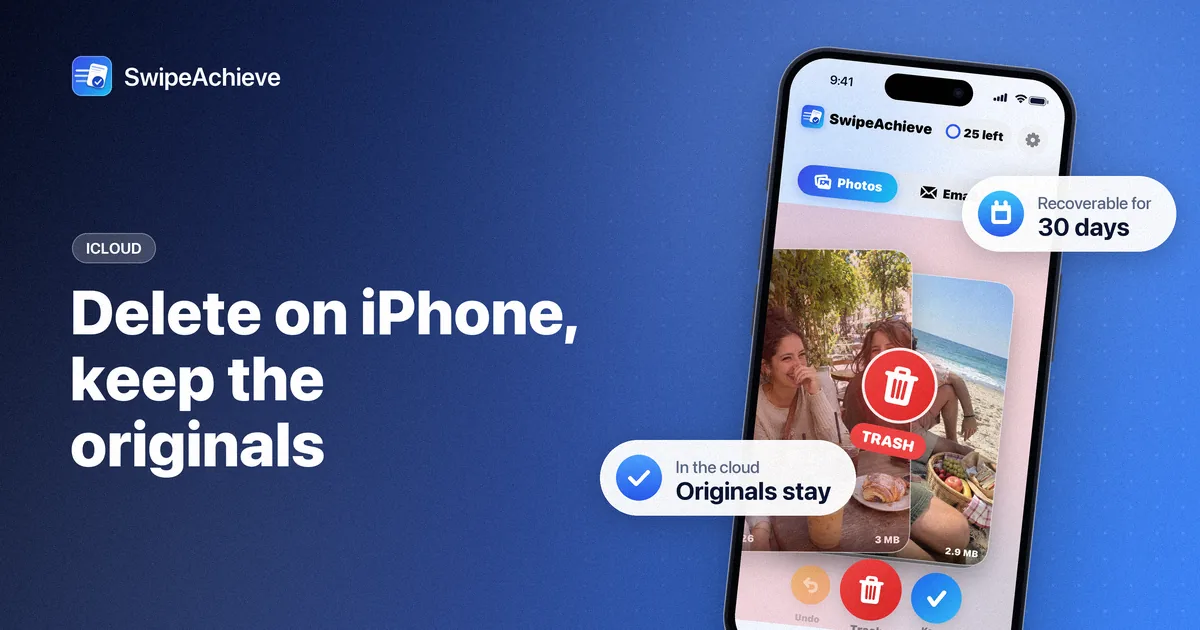
When you delete photos and videos on iPhone, they move to the Recently Deleted album and stay there for 30 days so you can recover them. During that time they still use storage. The space returns when they leave the album, either after 30 days or when you empty it yourself.
Two more things can make the number you see differ from the sum of the file sizes:
- Optimize iPhone Storage: if it is on, your iPhone may keep smaller versions of older photos and videos and store the originals in iCloud. Deleting them then frees less on the phone than their full size, and also frees iCloud space.
- iCloud Photos: deleting a photo on your iPhone also deletes it on your other devices signed in with the same Apple Account.
What this looks like in SwipeAchieve
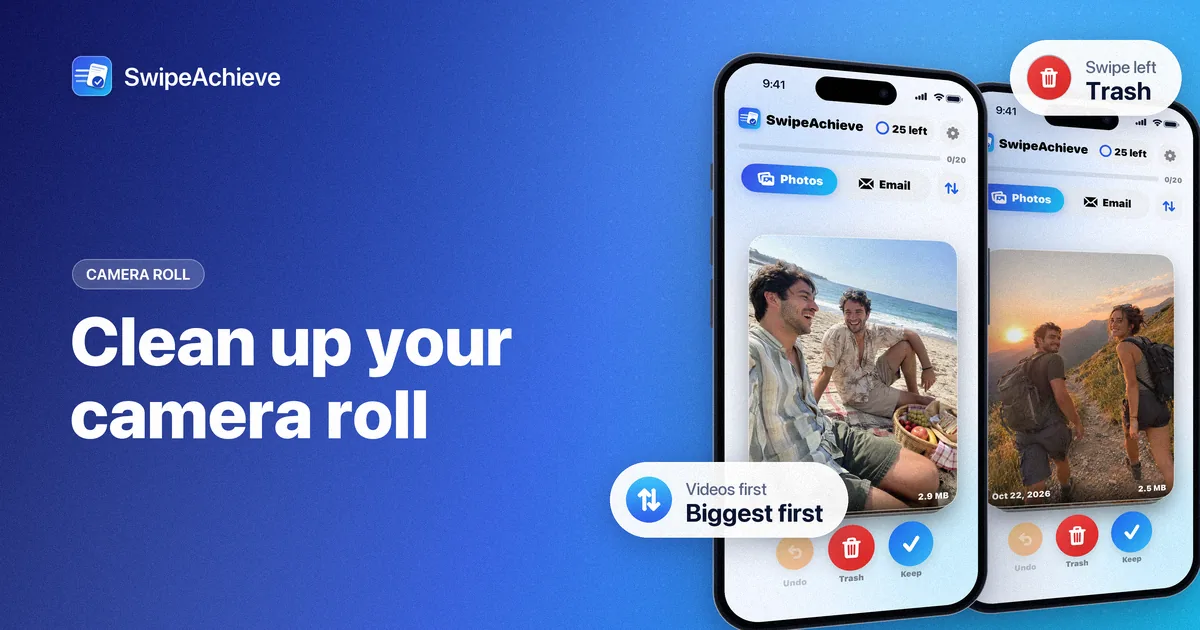
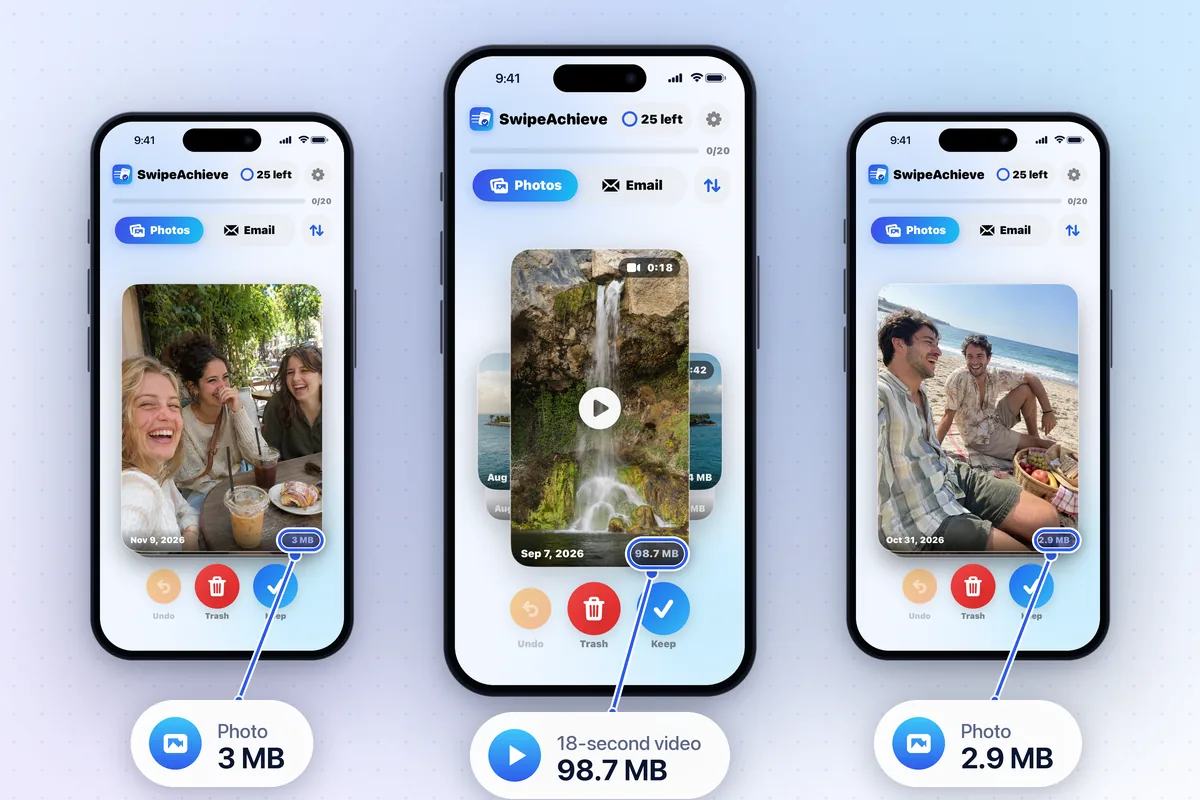
SwipeAchieve is a swipe-to-delete app for iPhone photos and videos. Photos and videos share the Photos tab, and every card shows the date and file size; video cards also show their length.
- Swipe left to queue an item for deletion, right to keep it. Kept items do not come back later, so you can stop at any time and pick up where you left off.
- Undo brings back your last swipes. Tap the queued count to review the list and tap any item to keep it after all.
- Tap Delete and confirm once in the iPhone system prompt. Nothing is deleted before that, and deleted items go to Recently Deleted like any other.
- A sort and filter button (two arrows) sits next to the Photos and Email tabs: Biggest first, Newest first or Oldest first, and All, Photos or Videos.
- Your photos and videos are processed on your iPhone and never leave it.
The app also adds up the size of the items you clear. That is a count of what you deleted, not a measurement of your phone's storage.
Free plan vs Pro, in time terms
The free plan includes 25 swipes a day, and both left and right swipes count. At that pace, 500 photos take 20 days of under a minute each, which is a gentle daily habit. If you want to do a big cleanup in one sitting, Pro removes the daily limit; see pricing for the current plans and the free trial.
FAQ
How long does it take to clean 1,000 photos by swiping?
At one decision every 1 to 2 seconds, about 17 to 33 minutes of swiping. In practice, split it into a few short sessions: decisions stay faster when you are not tired.
How much space will I get back?
Add up the sizes of what you delete. Photos are usually a few MB each; a minute of video is tens to hundreds of MB depending on resolution and frame rate. The space returns once the items leave Recently Deleted.
Is swiping safe? What if I delete the wrong photo?
In SwipeAchieve you can undo swipes, review the queue before deleting, and confirm in the iPhone prompt. After that, deleted items stay in Recently Deleted for 30 days, where you can recover them.
Does SwipeAchieve upload my photos?
No. Photos and videos are processed on your iPhone and are never uploaded.