SwipeAchieve
On most full iPhones, photos and videos take up the most space. A handful of long videos can weigh more than thousands of pictures, so a short, focused cleanup can win back gigabytes without touching anything you care about.
1. Start with the biggest files
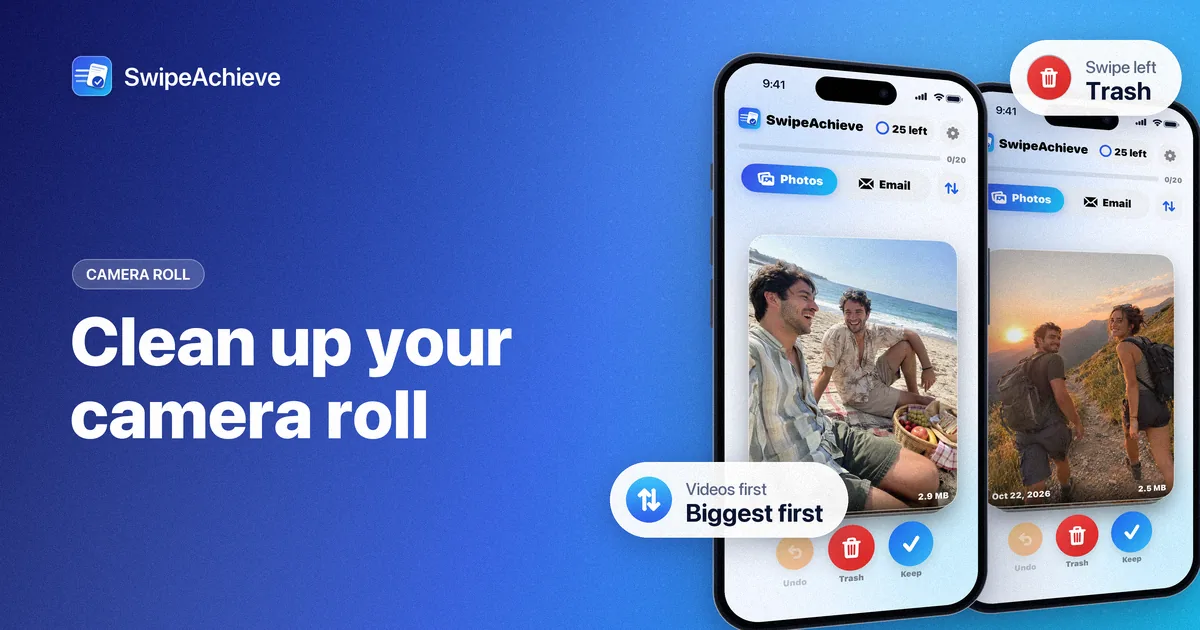
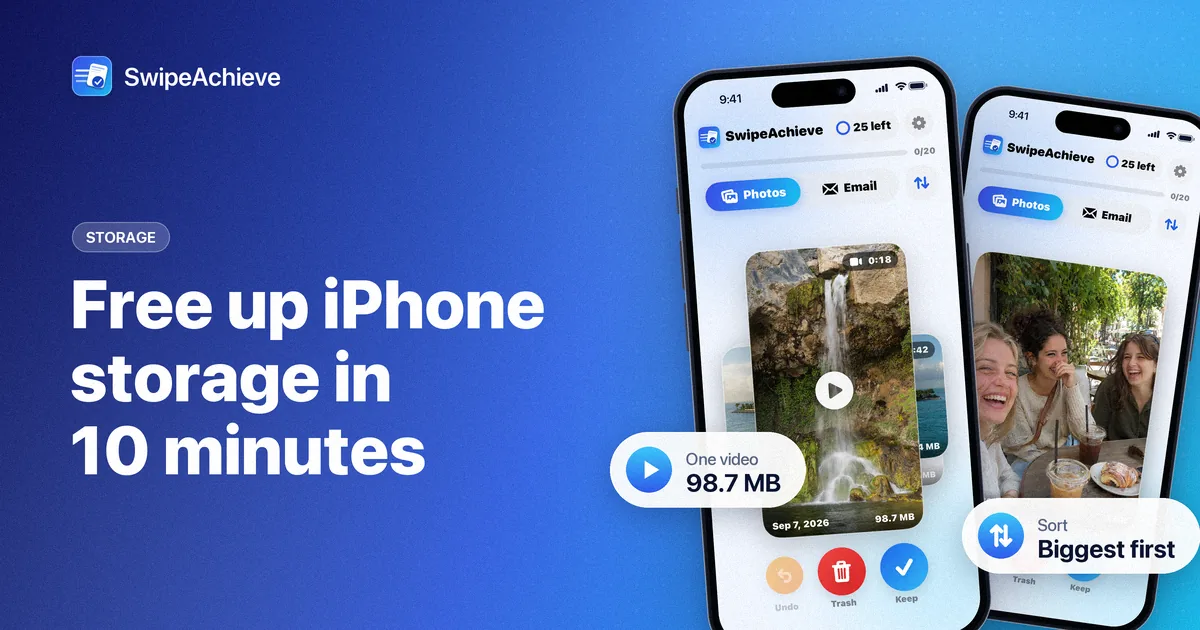
In SwipeAchieve, photos and videos share the Photos tab. Tap the sort and filter button (two arrows) next to the Photos and Email tabs. Choose Biggest first to see the heaviest items at the top, or set the filter to Videos to see only videos. Every card shows the date and file size, and video cards also show their length, so a 90-second clip you never watch is easy to spot.
2. Swipe: left to delete, right to keep
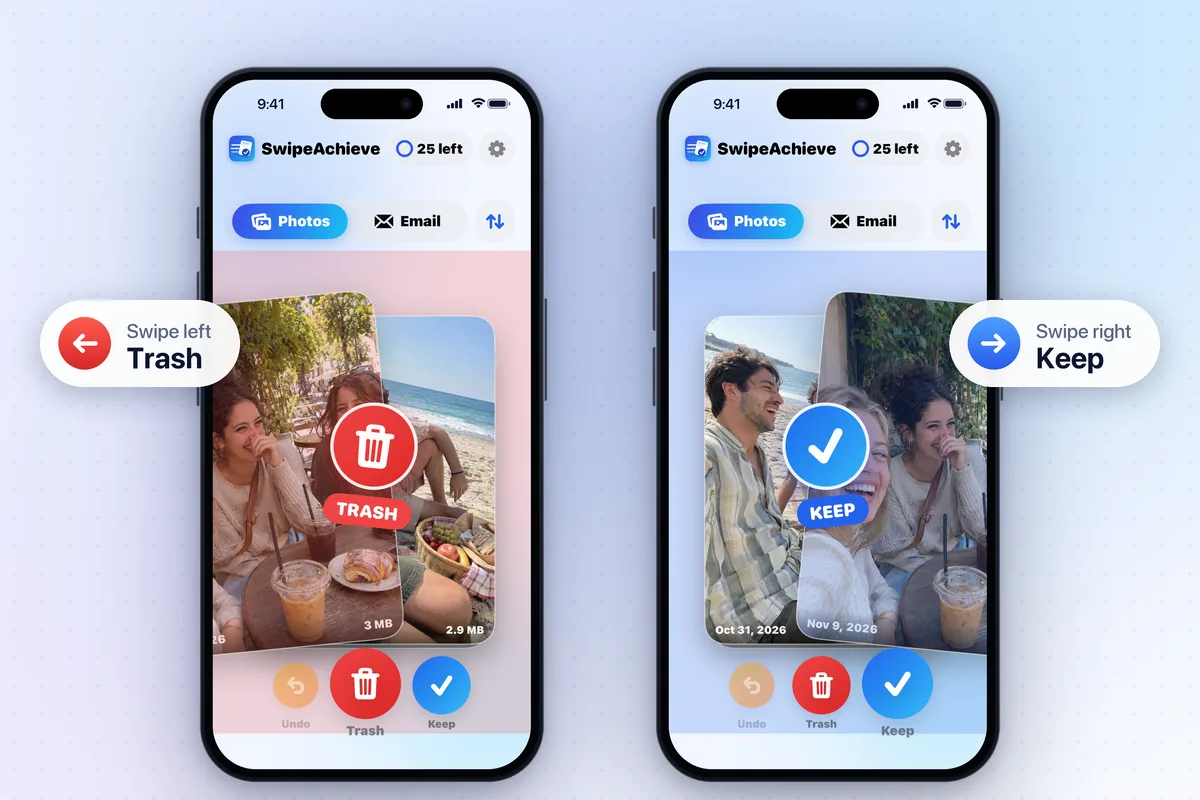
Swipe left on what you do not need and right on what you want to keep. The decision is one gesture, not a menu. Changed your mind? Tap Undo to bring back your last swipes.
3. Review, then confirm once
Items you swipe left are only queued. Tap the queued count above the card to review the list, and tap any photo to keep it after all. When you are ready, tap Delete and confirm in the iPhone system prompt. Nothing is deleted until you confirm there.
4. Let Recently Deleted work for you
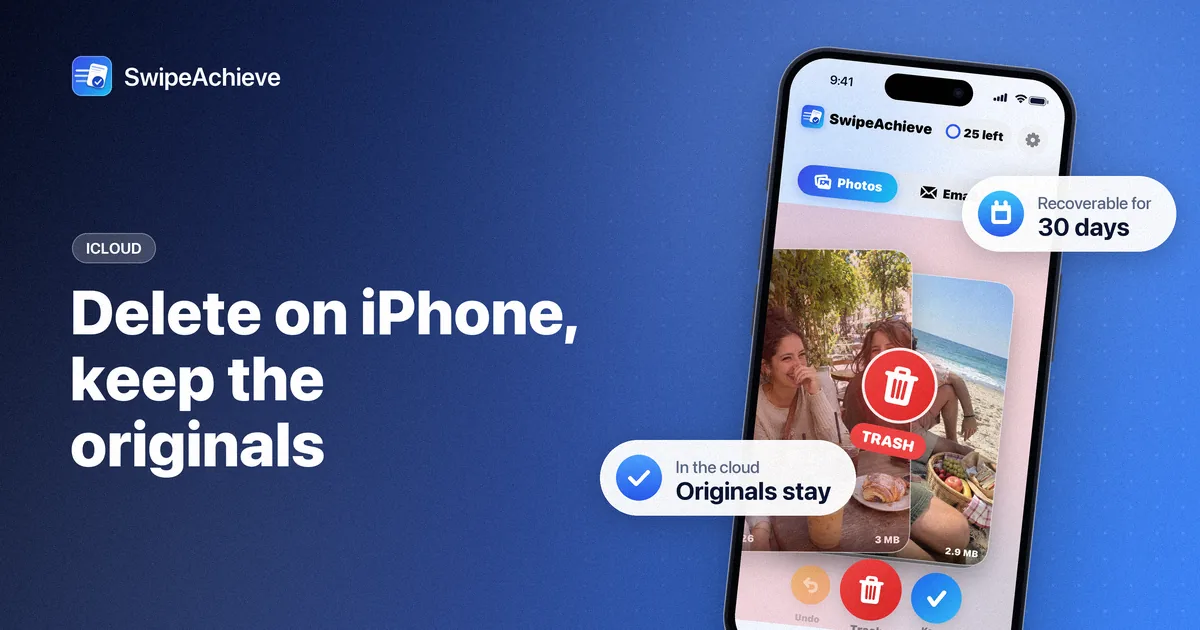
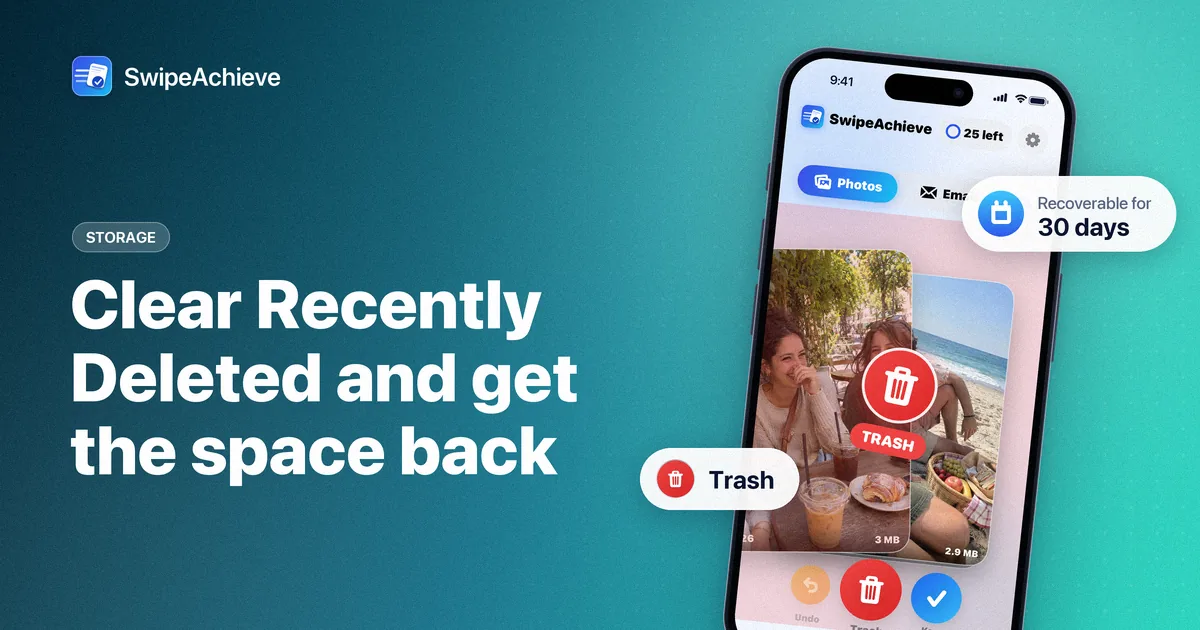
Deleted photos and videos move to the Recently Deleted album in the Photos app and stay there for 30 days, so you can still recover them. The space comes back once they leave that album. If you want the space right away, you can empty Recently Deleted yourself: see our step-by-step guide on clearing Recently Deleted on iPhone.
5. Keep it clean with a habit
- Spend five minutes a day, or one session a week. The free plan includes 25 swipes a day.
- Clean videos first: they free the most space per swipe.
- Email is separate: trashing email frees space in your mailbox, not on your iPhone.
SwipeAchieve turns this routine into a card-swiping game on your iPhone. Your photos never leave your phone, and the app shows how much space the items you clear add up to.