SwipeAchieve
If your iPhone is full, videos are the first place to look. One minute of 4K video can take as much space as a hundred or more photos, so deleting a handful of long clips you never watch often does more than an afternoon of sorting pictures. Here is how to find them with the built-in Photos app, and how to do it faster with a size sort.
Step 1: see how much space Photos uses
Open Settings > General > iPhone Storage. After a moment, your iPhone lists apps by size, including Photos. If Photos is near the top, videos are a likely reason. Depending on your iOS version and library, this screen may also offer recommendations, such as reviewing large videos; if you see one, it is a good shortcut.
Step 2: open only your videos in Photos
- Open the Photos app.
- Scroll down to Media Types. On iOS 17, open the Albums tab first; on iOS 26, open the Collections tab.
- Tap Videos. You now see only videos, and each thumbnail shows the video's length.
The Photos app does not sort videos by file size. Length is the next best guide: at the same quality, a 5-minute video is roughly ten times the size of a 30-second one. Scan for long durations first.
Step 3: check a video's size
Open a video and swipe up, or tap the info button. On recent versions of iOS, the details include the resolution, frame rate and file size. This helps when two clips are the same length but one was shot in 4K at 60 fps.
Step 4: delete what you do not need
- In the Videos album, tap Select.
- Tap the videos you want to remove.
- Tap the trash button and confirm.
Deleted videos go to Recently Deleted and stay there for 30 days, still using space. To get the space back now, empty that album: see how to clear Recently Deleted on iPhone.
Why some videos are so large
Your iPhone shows its own estimates in Settings > Camera > Record Video. With the High Efficiency format, one minute is about 60 MB at 1080p and 30 fps, about 170 MB at 4K and 30 fps, and about 400 MB at 4K and 60 fps. Slow-motion, Cinematic and ProRes video can be larger still. Figures vary by model, so check that screen on your phone.
If you do not need 4K for everyday clips, choosing 1080p there keeps future videos smaller. That is a trade-off between quality and space, and only you can make it.
Videos that are not in your library
Videos people send you in Messages are stored by the Messages app, not in Photos, unless you save them. In Settings > General > iPhone Storage, tap Messages to see how much space attachments use; depending on your iOS version, you can review and delete large attachments there. Chat apps such as WhatsApp keep their own media too, with their own storage settings.
The faster way: sort by biggest first
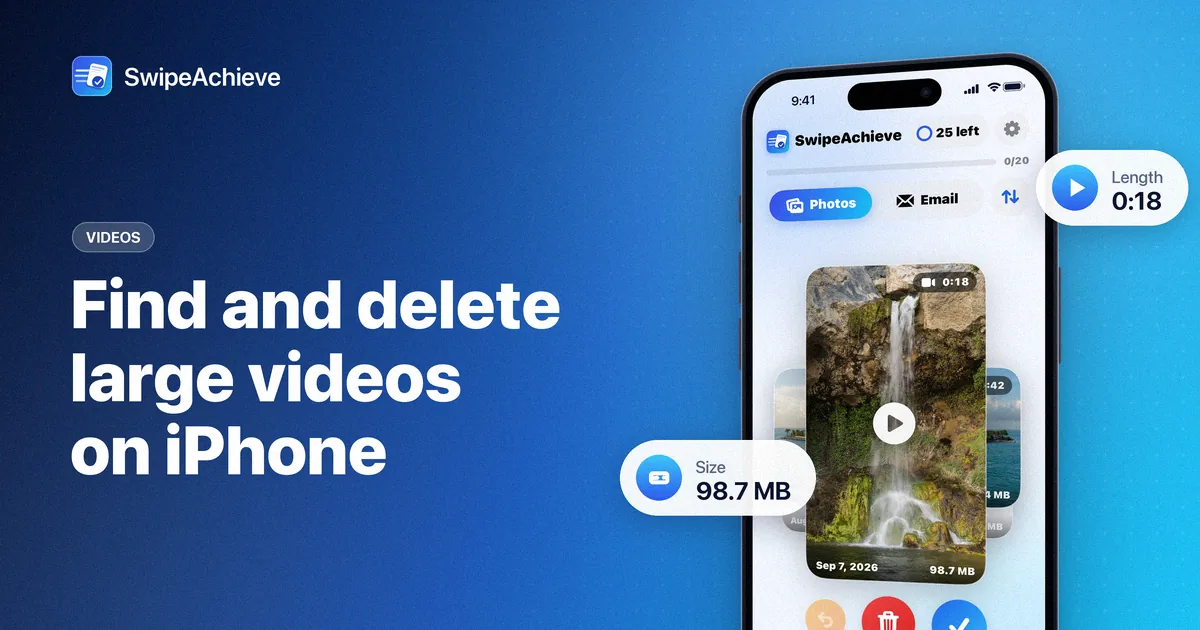
SwipeAchieve shows your photos and videos as full-screen cards, one at a time. Each video card shows the length and the file size, so you can decide in a second whether a clip is worth its space.
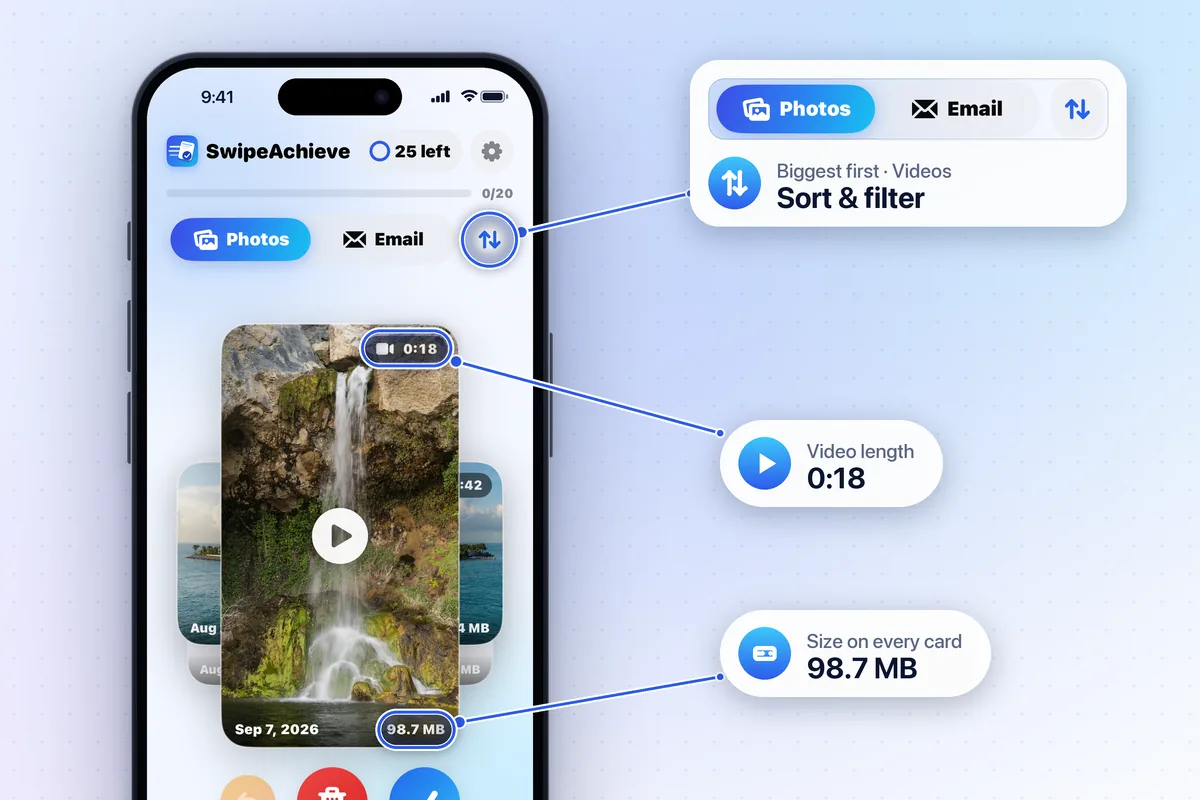
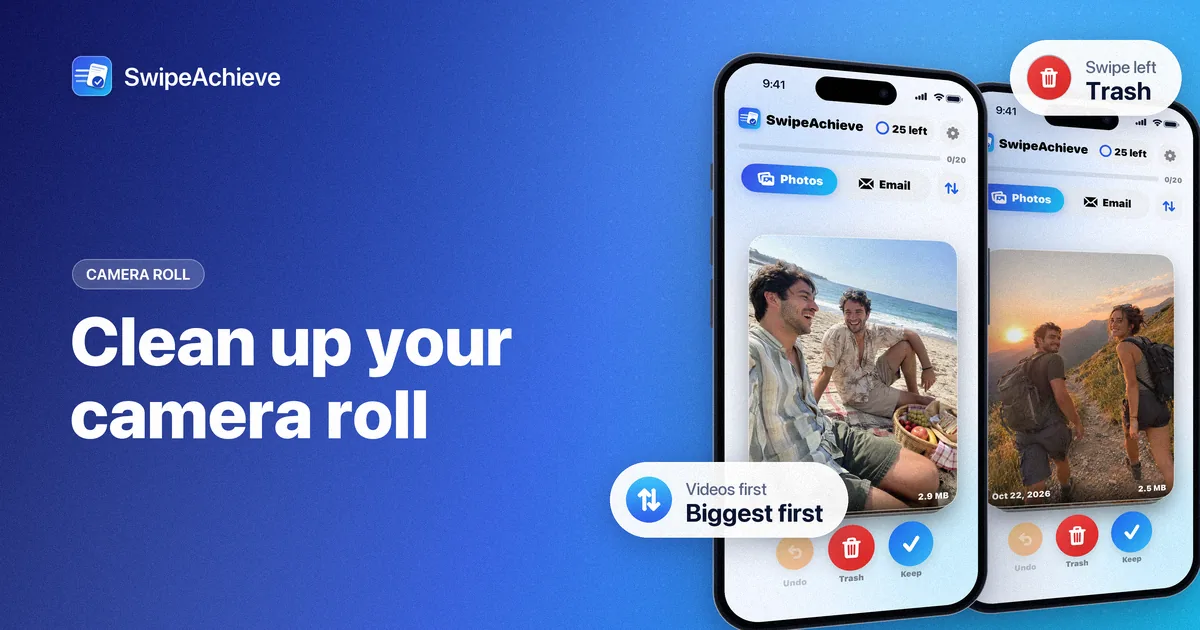
- Open the Photos tab and tap the sort and filter button (two arrows) next to the tabs. If you do not see it yet, make a few swipes first.
- Choose Biggest first. To see only videos, choose Videos under Filter.
- Swipe left on the videos you do not need and right on the ones you want to keep.
- Tap the queued count to review, then tap Delete and confirm in the iPhone prompt.
On a large library, Biggest first reads file sizes in the background, starting with videos, so the order fills in as it goes. The sort you choose is remembered next time.
Before you delete: three checks
- Shared memories: a video in an iCloud Shared Library or shared album may matter to someone else. Ask first.
- iCloud Photos: deleting on your iPhone also deletes the video on your other devices signed in with the same Apple Account.
- Optimize iPhone Storage: if it is on, older videos may be stored on the phone in a smaller version, so deleting them frees less on the iPhone than their full size and frees iCloud space too.
Keep it from filling up again
- Do a short video pass once a month: biggest first, ten minutes.
- Trim long clips you want to keep. In Photos, Edit lets you shorten a video, but check whether your iOS version saves a copy or replaces the original.
- Export the long videos you want to keep forever to a computer or other storage you trust, then delete them from the phone.
The free plan includes 25 swipes a day, which is often enough for the largest videos alone. Pro removes the daily limit; see the pricing page.
FAQ
Can the iPhone Photos app sort videos by size?
No. The Videos album under Media Types shows each video's length, and the info panel shows a single video's details, but there is no built-in sort by file size. Apps that read file sizes, such as SwipeAchieve, can sort biggest first.
Why did my storage not change after deleting videos?
Deleted videos stay in Recently Deleted for 30 days. The space returns when they leave that album, or when you empty it.
How big is a one-minute iPhone video?
About 60 MB at 1080p and 30 fps and about 170 MB at 4K and 30 fps with the High Efficiency format, according to the estimates in Settings > Camera > Record Video. Your model may differ slightly.
Does SwipeAchieve upload my videos to sort them?
No. It reads sizes on your iPhone. Your photos and videos never leave the phone.