SwipeAchieve
Thousands of old emails are not a moral failing. They are what happens when a mailbox runs for years without a cleanup. The good news: old mail is the easiest mail to delete, because almost none of it needs an answer anymore. This guide shows how to clear it in bulk, with your mail app and with a swipe app, and what happens to the email you delete.
Why bother with old email?
- Mailbox storage: your email counts toward your provider's storage. Free iCloud accounts include 5 GB shared across iCloud, and Google accounts include 15 GB shared across Gmail, Drive and Photos.
- Search: fewer old newsletters and promotions mean better search results for the emails that matter.
- Calm: a smaller inbox is simply easier to look at.
One thing it does not do: deleting email frees space in your mailbox, not on your iPhone. If your phone is full, photos and videos are the place to start; see how to free up iPhone storage.
Option 1: bulk delete in the iPhone Mail app
The Mail app on iPhone can select many messages at once. On recent iOS versions:
- Open a mailbox, such as the inbox of one account.
- Tap Edit (or Select), then tap the messages you want to remove. Some versions also offer Select All.
- Tap Trash (or Move to send them to another folder).
To target one sender, search for their name or address first, then select the results. This is fast when you already know what has to go. It is less helpful when you want to look at each message before deciding, because you are choosing from a long list of subject lines.
Option 2: search by age on the web
Most webmail services let you search and select in bulk. In Gmail on the web, for example, the search older_than:1y finds mail older than one year, and you can select every result and delete it. Other providers have their own search and filter options; check their help pages for the exact steps.
Option 3: swipe through it, oldest first
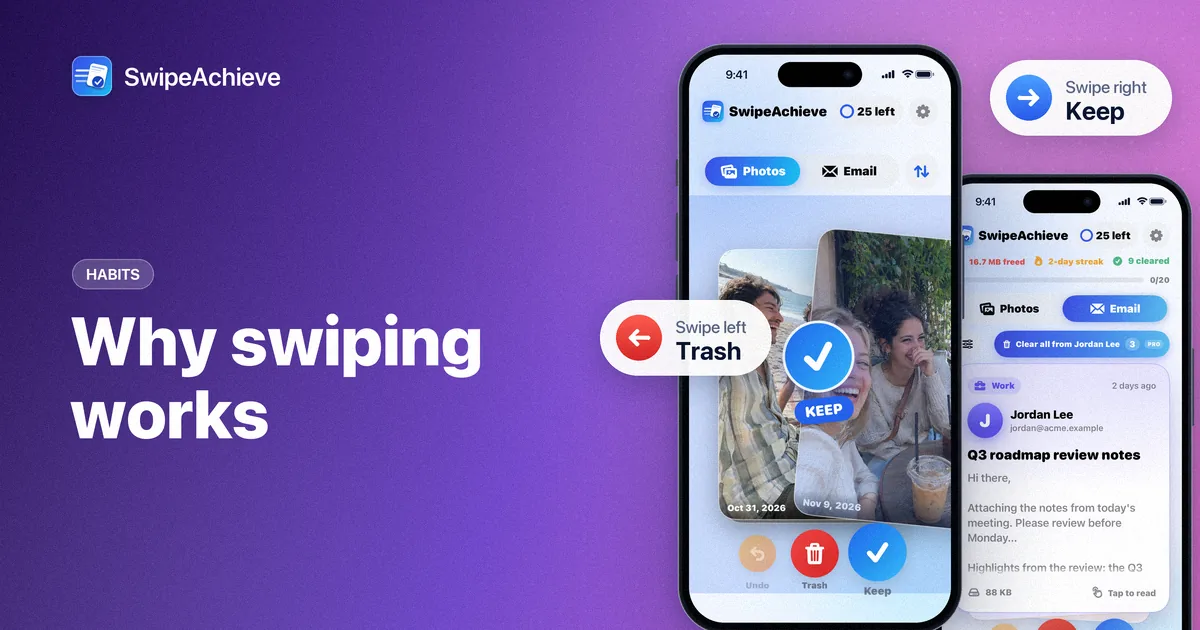
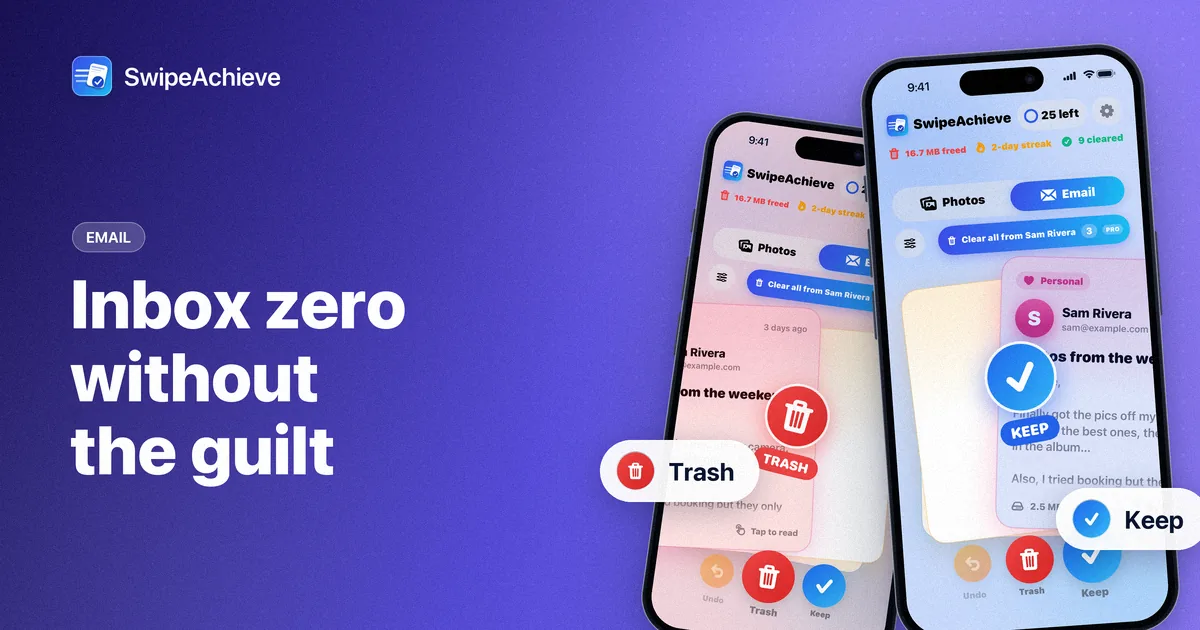
SwipeAchieve shows one email at a time as a card with the sender, subject and size. Swipe left to move it to your Trash folder, swipe right to keep it. It connects to your mailbox with IMAP and an app password, and works with iCloud Mail, Yahoo Mail, AOL Mail, Gmail (with an app password) and most other IMAP providers.
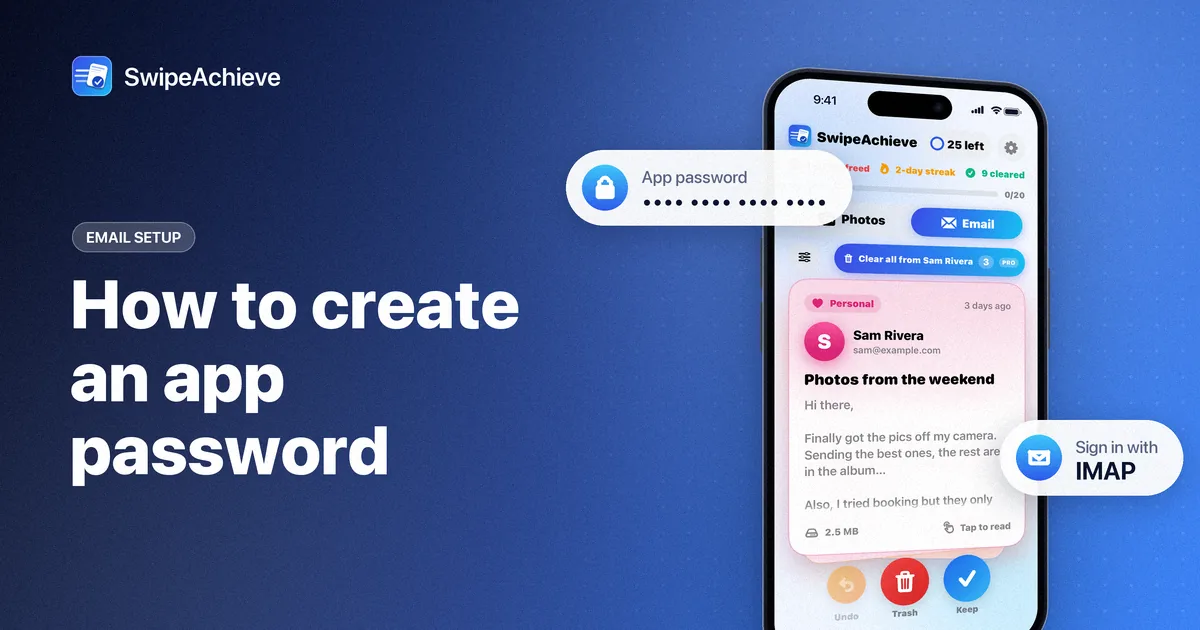
Need an app password first? Our step-by-step guide covers iCloud Mail, Yahoo Mail and Gmail.
Then start with the backlog:
- On the Email tab, tap the filter button (the sliders icon) just below the Photos and Email tabs. It appears after your first few swipes.
- Choose an age filter: Older than 1 month, Older than 6 months or Older than 1 year. The age filter is free.
- Swipe through. Old receipts you no longer need, expired offers and last year's newsletters go left in a second; anything worth keeping goes right.
- Made a mistake? Undo reverses your last swipes.
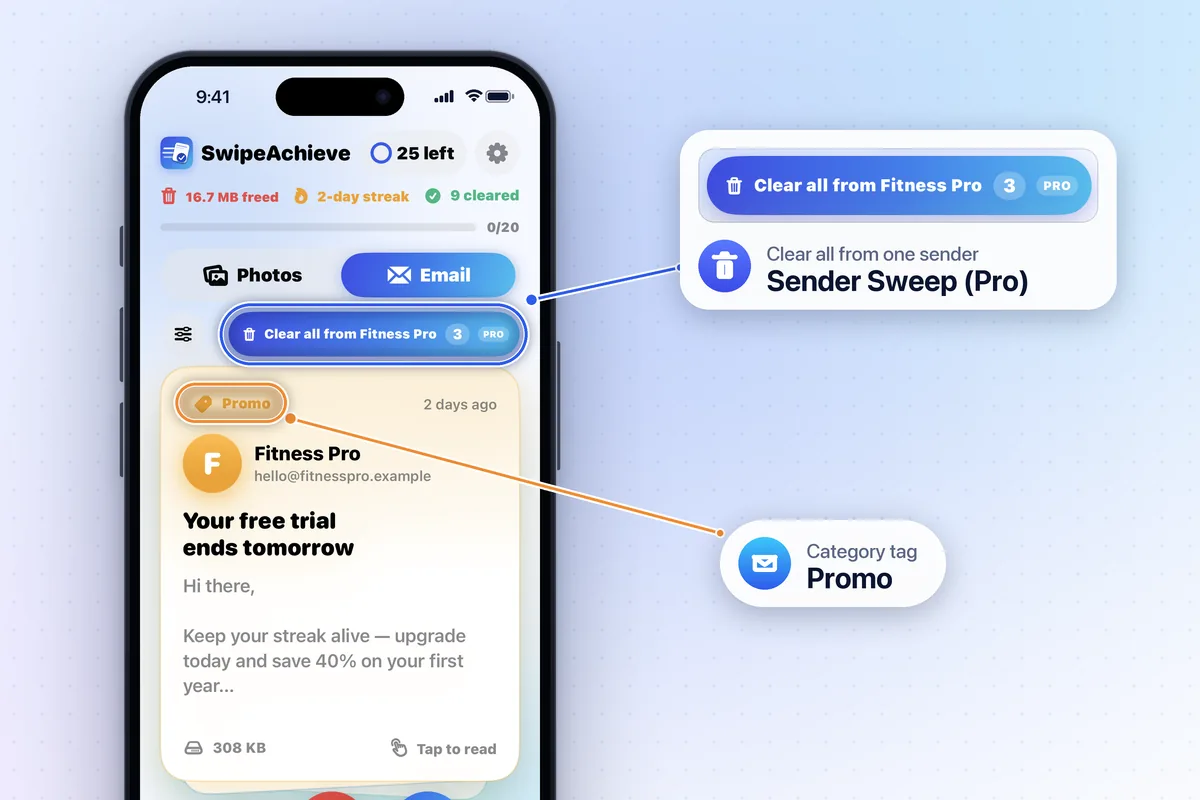
Clear noisy senders in one tap (Pro)
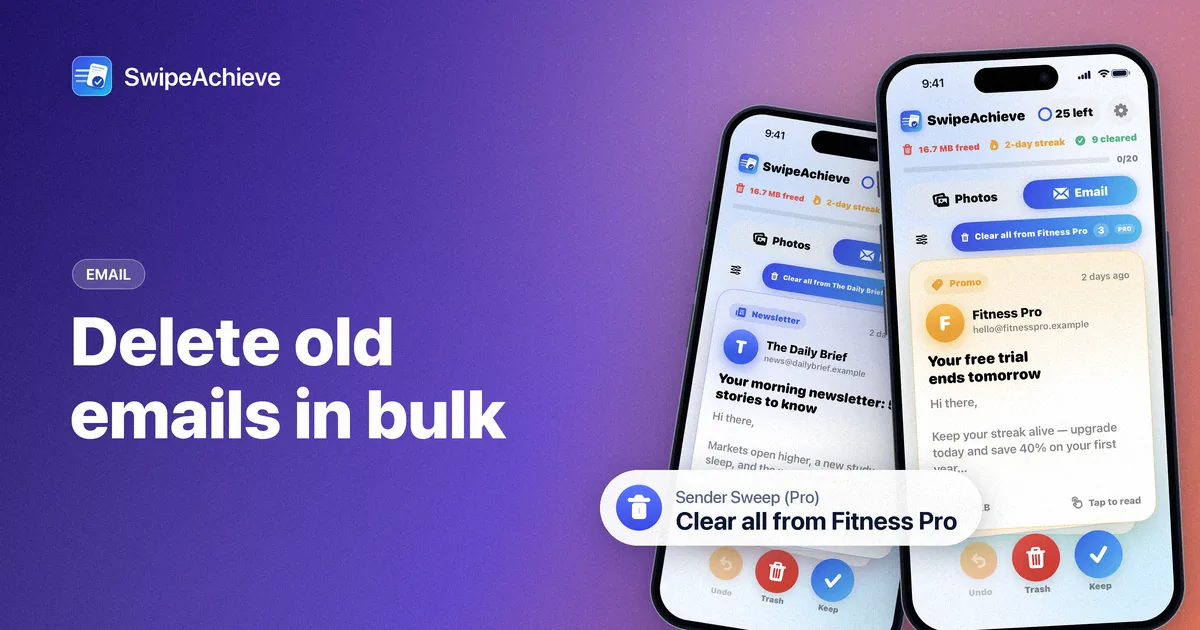
Old mail is often the same few senders over and over: shops, newsletters, apps. With SwipeAchieve Pro, Sender Sweep shows a Clear all from button above the card; one tap moves every loaded email from that sender to Trash. Pro also adds smart sort (biggest or oldest first) and removes the 25-swipes-a-day limit of the free plan. Details are on the pricing page.
Where deleted email goes
In SwipeAchieve, swiping left moves an email to your Trash folder; it does not delete it permanently. You can restore it from Trash in your usual mail app. Each provider decides when Trash is emptied: Gmail, for example, deletes messages that have been in Trash for 30 days. Your mailbox space returns once Trash is emptied, so empty it yourself if you need the space now.
Privacy
SwipeAchieve reads mail straight from your provider to your iPhone and processes it on the device. Your app password is stored in the iPhone Keychain and is never sent to us, and SwipeAchieve runs no server that stores your email. You can remove the account in Settings at any time and revoke the app password with your provider.
A cleanup plan that sticks
- Week 1: Older than 1 year. Delete freely; almost nothing old needs a reply.
- Week 2: Older than 6 months. Keep receipts and anything with dates you may need.
- After that: unsubscribe from the senders you keep trashing, so the backlog does not come back.
FAQ
Can I delete all emails older than a year at once?
In many webmail services you can search by date and delete every result. In SwipeAchieve, the Older than 1 year filter shows only that mail so you can swipe through it; with Pro, Sender Sweep clears a whole sender at once.
Does deleting email free up space on my iPhone?
Not meaningfully. It frees space in your mailbox with your email provider. For iPhone space, clean photos and videos.
Which email providers does SwipeAchieve work with?
Any mailbox that supports IMAP with an app password, including iCloud Mail, Yahoo Mail, AOL Mail and Gmail with an app password. For other providers, you enter the IMAP server from their help pages.
Can I get a deleted email back?
Yes, while it is still in your Trash folder: use Undo in SwipeAchieve right away, or move it back from Trash in your mail app.
iCloud is a trademark of Apple Inc. Gmail is a trademark of Google LLC. Yahoo and AOL are trademarks of Yahoo. SwipeAchieve is not affiliated with these companies.